Sunday, April 5, 2009

Skype iPod Touch/iPhone App Hands On and Review

Finally, Skype came to the iPhone and iPod touch. The VOiP service is popular among many people all over the world. Users used their PCs, Macs, and other devices to call via Skype, but is it good?

Hands on Video


**The bluetooth module [Nike + iPod] is only available for the 2g iPod Touch. You can use "mic accessories" that attach to the bottom port of the iPod for both iPod Touches.

Thoughts

For the most part its excellent. Calling is a breeze and text chatting is great as well. I experienced no lag or bugginess in the app itself. The app is easy to use and set up. Overall, it is very solid and a really great app. Because people have issues with the app, I have to subtract some points from the review score.

Skype: 4.5/5

Saturday, April 4, 2009

We are officially DiTechite!


A few days ago, I recruited Darkeagle to join TheBolBlog. To be fair, we I decided to change the name. We both have been collaborating for days and finally chose DiTechite as our new name. We are still the same site, just with a different name. Also check out the cool new header for the site!

The Blogger URL will be www.DiTechite.blogspot.com

You can still enter this site using the "thebolblog.tk" URL or any of our previous URLS. In addition, we will add "DiTechite.tk" to our family of URLs as well. You can expect these URLs to work by tomorrow afternoon.

Bol/Darkeagle

Friday, April 3, 2009

So you Want/Have a New Computer...


Ok every once in a while, I get my hands on a new computer. First comes buying a laptop or computer. You will need to know what you want before you go and buy a one. Decide if you will want a PC or Apple...

PC

A new PC [today] comes with the “Windows Vista” operating system [OS for short]. A Windows Vista computer is for anyone who wants to do anything. From watching movies to just surfing the Internet, Windows Vista is great.

Windows OS is put on many computers from numerous companies like HP and Dell and can vary in type. There are Laptops, Desktops, and Netbooks (Mini-Laptops).

The bad thing is that it needs constant updating of firewall and security. Plus the OS itself is buggy and it is a memory [RAM] hog, or it can run slow at times. Plus the user interface is not that user friendly and many people will find it frustrating.

Typically, Windows PC’s are the most customizable for your budget. You can, also, easily upgrade them to fit your needs now or later.

If you want to buy a PC now, you can. But I definitely recommend waiting for Windows 7. It is a MUST HAVE upgrade. It uses up less RAM and it can run efficiently on all types of PC’s. Don’t believe me, some people are already running the Windows Beta on their Netbooks. Plus, you will more likely get a better running system when it is pre-installed with Windows 7 already.

Apple

Apple sells computers called that run on their operating system, “OS X”. OS X Leopard [OS X 10.5] is the current version of OS X.

The current models are as follows:


Macbook [standard Apple Laptop 13.3" screen, $999+]


Macbook Pro [expensive, but powerful professional grade laptop 15"-17", $1699+]


Macbook Air [very thin 13.3" screen 1699+]


Mac Mini [low tier Apple Desktop, small design with a big punch, no keyboard or mouse $499+]


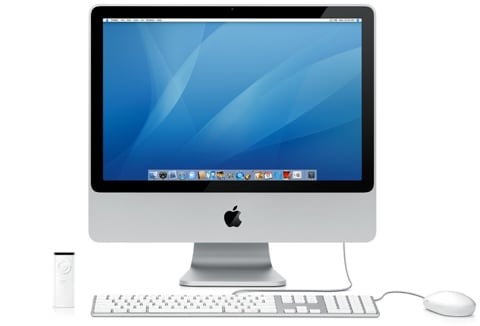
iMac [all-in-one desktop with a 20 or 24 inch screen, powerful $1199+]


Mac Pro [most expensive model, most powerful, fully upgradable, professional grade desktop $2200+].

All of today’s Apple computers come with an Intel Core 2 Duo Processor [2 cores] with the exception of the Mac Pro which can run on the Intel Xeon Processor which can run up to 16 cores.

OS X is a special OS, in the sense that it almost never gets a virus. Also, OS X has a very unique design and is far more efficient in processing speed than Vista. The user interface is more intuitive than Vista’s and has a clean, simple look.

Macintosh computers [Macs for short] also have a utility called Boot Camp that comes standard with OS X Leopard and Tiger that can run almost any other OS including Vista and XP. This will only work on Macs on an Intel Core based processor. Macs can be used for high performance video, photo and website design, and is a favorite among filmmakers, producers, photographers, etc.

You will find that games and a Mac don’t go together. Plus, heavily upgrading your Mac can only be done on the “Mac Pro” model computer because it has removable parts. You can upgrade on the current Macbooks, iMacs, and Mac Minis but it can be hard to do. Plus, Mac computers are very expensive when compared to PC’s but Macs do last longer than a typical PC. I would suggest waiting till after June to get a Mac because you can expect Apple to do some upgrades to their computer line up with the release of their new OS, OSX Snow Leopard [10.6] Its is expected to run better than its predecessor.

PC-What to Do?

When buying your new PC, you are not required to buy “Anti Virus” software. You can easily get great anti virus software for free on the internet. If anti-virus came with your PC, good. Just check to see if it’s a trial version. Typically, trial versions run only for 6 months then they bug you to pay a subscription fee to continue service. If you are willing to pay for it, its good but you can find comparable software and services for free online.

Setting up your PC or Mac is a blast. When you turn it on, it typically asks you for your name, address, and things of that nature. Then, it will ask you to make accounts for your computer. This is only necessary if you have more than one person using the computer. One of the first things the computer will ask you to do is update your system. This will be done only of your computer is connected to the internet. It this may take a few minutes to do, but it is worth it. It is vital that you update your computer often so it can run the best it can.

For PC – What do I do?

-I delete the programs that I don’t want or need. This is to get the most out of my Hard Drive and programs installed on your Drive slow down your computer. Also I clean up my desktop so it isn’t so crowded.

-I then go to Start>Run>msconfig. Then the startup tab and delete the processes [software] that are un-needed on the start up of your computer.

Software to get:

• Mozilla Firefox, is faster than Internet Explorer and runs Java script faster
• Download/Install/Update Java and Adobe Flash to play internet games and watch most videos on Google/Youtube/Hulu and almost every other video site
• CCleaner to clean my PC ever week or so. Less than 1min to run.
• AVG for your security. It’s one of the Best free anti-virus protectors
• iTunes to listen [and/or buy]music
• VLC Media Player to watch movies and videos of any format
• Frostwire to get my music and videos
• AIM/MSN/Yahoo Instant Messenger/Skype to talk my friends. [Skype may require mic]

For Macs – What do I Do?

Apple computers come with almost everything you will need to use right out of the box. But programs are still needed and the system also needs to be update. Restarting is required.

Software to Get:

• Mozilla Firefox
• VLC Media Player
• Adium, which is an AIM/MSN/Yahoo Instant Messenger client
• Frostwire
• Transmission – Torrent Client
• Growl – Notification Software
• Skype [May require mic]

So if you want to get a new computer, just get the one the best suits you. I recommend going to your local Best Buy to check out the Macs and PCs side by side to see which one you think would make you happy.

For more info on any of the things in this article, please refer to the respective sources on the bottom of this article.

Mozilla Firefox
Java
Adobe Flash
AVG [PC]
CCleaner [PC]
iTunes
VLC
AIM
MSN Messenger
Yahoo Messenger
Adium [Mac]
Frostwire
Skype

Thursday, April 2, 2009

Nintendo DSI unboxing and preview


This Sunday is a big day for Nintendo as the New Nintendo DSi will become available for $169.99 USD. Some of the features are as followed:

(Outside of Box)
-Non Glossy Finish, now the front is smooth
-Volume is now on left side of DSi
-SD card slot on Right Side
-No GBA slot on front anymore :(
-A different Charger input
-Triggers are raised for more convenience
-1 Camera on top of DSi
-Power button is no longer on the outside
-Mic Jack is in the same place
-Stylus is in same place

(Inside)
-All the buttons are the same place
-Power is in the bottom left hand corner
-The screens are significantly bigger
-Camera 2 is between the 2 screens

The DSi is just a little bit thinner, lighter and a tad longer than the DS Lite. The camera quality is not great, it's very similar to an iphone camera though. There is little to do in the editing of the photos i.e. Distortion, Comment bubbles, Misc. and merging 2 photos together along with the usual color fading and markers. As for the playing music, only AAC files are accepted so, iTunes can easily convert your music to AAC. The DSi will also have internet software and a store where $20 will get you 2,000 points. There is no reason to upgrade yet unless exclusive content becomes available, but if you buy a DS Lite now, to save $40.00 you may be kicking yourself in a few months.

Unoxing of the DSi


Testing the Cameras


Testing the Audio Recording


DSi Vs: DS Lite


Source: Joystiq

New Domain Change


Hello readers, we decided at around 4:48CST To change our name from "TheBolBlog" to "DiTechite" It is a made up chemical name.... Di for 2 writers and Techite because we are polyatomic? The domain name should change within the next few days to DiTechite.tk and look forward to the new header coming soon...

,Dark

Wednesday, April 1, 2009

Breaking News: PS3 Update 2.7 is Live...No Voice Messaging

Well Sony finally did it, they released Update 2.7. The features included are the following:
-The ability to search the net about a particular game direct from the game section of the XMB using the triangle menu
-The ability to cut and paste text
-A Dynamic Normalizer to prevent sudden increases in volume between music tracks
-I.M. Conversations (via PSN) with up to 15 people
-PS Movie purchases can be backed up on an external device

The following video shows you 2.7 in action.

Bol Tips: Mac OSX Customizing


The thing that sets Windows and OS X apart is the fact that Windows is more customizable (more customizability in XP than Vista). There is lots of software and tips that will help you customize your OS X experience.

Growl Notifications

Growl is a notification program that runs off your System Preferences pane. Applications like Adium (Aim Client) and Transmission (Torrent Client) can use Growl to display small notifications about events which the user deems important, in a consistent manner. This allows users to fully control their notifications, application developers to spend little time creating notifications, and Growl developers to concentrate on the usability of notifications. There are also different styles of pop-ups that can match with anything.

Growl is a must have for all Mac owners.

Magnifique


Magnifique is an OS X theme software. It basically lets you customize everything. It can change the look of your dock, menubar, title bars, windows, etc. This is the closest you will get to changing the physical look of Leopard. It makes your Mac look good but it is very buggy. On the Magnifique site (Bottom of Article), there are about 25 themes that you can download, about only 4 of which are good.

The best theme, in my opinion, is Siro. This theme changes the "Three Orbs" on the title bar, the scroll bar, and many other physical traits.

Customizing on Leopard itself


The rest of the customizing can be done on OS X itself.


You can change the highlight colors, the "Appearance" of your windows (grey orbs on the title bar) by going to your System Preferences and clicking on the "Appearance" tab. You can also change the "Highlight" color there.

To make your menubar transparent, right click on your desktop and then click on "Change Desktop Background". The option should be on the bottom of the "Change Desktop Background" window. Once you have found it, check it.

Customizing Finder:
You can customize the sidebar in Finder by dragging and dropping apps and folders on and off it.

To customize the toolbar, right click or control click the toolbar and click on the "Customize Toolbar" option. There you can drag and drop icons and buttons. You can also rearrange them by means of dragging.


You can also put pictures (or just any color) as a backdrop on your finder window (shown above). To do that:
1) Make sure your Finder window is viewing "as Icons".
2) Go to the menu bar and click on View>Show View Options
3) Here you can pick a backdrop color or picture, edit spacing between icons, icon size, and other stuff like that. If you want your options to be applied for all folders, click on the "Use As Defaults" button in the View Options.

You can also tag (Label) folders and files by highlighting it and then going to File>Label:[Colors].

The Dock


You can go to the "Dock" tab System Preferences pane and change the position and size of your dock. You can also drag and drop apps in and out on the dock. You can also drag folders on the dock. This will enable the "Stacks" feature shown above. You can also choose to view in list form.

Aside from using the Dock options in the System Preferences, you can also change the color of your dock. This can be done using many programs. I prefer Pimp My Dock. For more instructions on how to use Pimp My Dock, or on where to get themes, please go to the source on the bottom of the article.

For more information on any of the stuff above, please go to their respective URL's.

[Source] Growl
[Source]Magnifique
[Source] - Apple:Mac 101-Customizing Your Mac
[Source] - Apple:Mac 101-Customize the Dock
[Source] - malcom-mac:Pimp My Dock